From Laggy to Smart: My Java App Learns to Click
Auto accept game for League of Legends built in Java
Insights
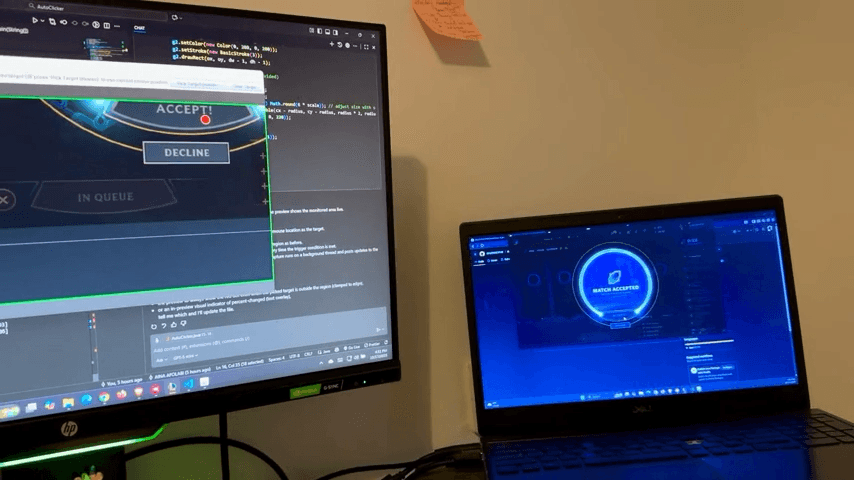
One night after a long day of sitting and working, I logged on to League to relax (trust me, it is not relaxing). I hit the Find Match button, then ran to the bathroom. If you’ve ever played League of Legends, you know it picks the worst time to show the “Match Accepted” screen. You have about 15 seconds before it auto-declines the game for you.
I missed that window. Got banned.
So I thought, I can automate this.
The Plan
I wanted to build a lightweight Java app that could:
Watch a fixed region of the screen
Detect when the Accept button appears
Click it automatically
I set three rules for myself:
Keep CPU use very low
No false positives
For tools, I chose:
Java 17, with JavaFX for the interface
java.awt.Robot for screen capture and mouse clicks
ScheduledExecutorService for the scanning loop
How It Works
Capture a small region using Robot.createScreenCapture(rect)
Convert it to grayscale and downscale for speed
Compare it to the last captured frame
If the pixel difference passes a set tolerance, trigger a click
Pseudocode looked something like this:
init UI, load settings
rect = selected region
robot = new Robot()
prev = null
stableHits = 0
every scanInterval ms:
img = robot.createScreenCapture(rect)
diff = meanAbsDiff(prev, img)
prev = img
if diff > tolerance:
stableHits++
else:
stableHits = 0
if stableHits >= debounceCount:
click(rect.center())
stableHits = 0
sleep(cooldown)
This small loop made all the difference. Instead of scanning the whole screen, it focused only on where the Accept button appears, saving a ton of resources.
Building Version 1
Version 1 was pure experimentation. I used raw Swing components, scanned the entire screen, and pushed my CPU to almost 100%. The app clicked when it shouldn’t have, lagged when it should’ve been idle, and stayed open even when I quit the game.
Still, it proved the idea worked.
One night after a long day of sitting and working, I logged on to League to relax (trust me, it is not relaxing). I hit the Find Match button, then ran to the bathroom. If you’ve ever played League of Legends, you know it picks the worst time to show the “Match Accepted” screen. You have about 15 seconds before it auto-declines the game for you.
I missed that window. Got banned.
So I thought, I can automate this.
The Plan
I wanted to build a lightweight Java app that could:
Watch a fixed region of the screen
Detect when the Accept button appears
Click it automatically
I set three rules for myself:
Keep CPU use very low
No false positives
For tools, I chose:
Java 17, with JavaFX for the interface
java.awt.Robot for screen capture and mouse clicks
ScheduledExecutorService for the scanning loop
How It Works
Capture a small region using Robot.createScreenCapture(rect)
Convert it to grayscale and downscale for speed
Compare it to the last captured frame
If the pixel difference passes a set tolerance, trigger a click
Pseudocode looked something like this:
init UI, load settings
rect = selected region
robot = new Robot()
prev = null
stableHits = 0
every scanInterval ms:
img = robot.createScreenCapture(rect)
diff = meanAbsDiff(prev, img)
prev = img
if diff > tolerance:
stableHits++
else:
stableHits = 0
if stableHits >= debounceCount:
click(rect.center())
stableHits = 0
sleep(cooldown)
This small loop made all the difference. Instead of scanning the whole screen, it focused only on where the Accept button appears, saving a ton of resources.
Building Version 1
Version 1 was pure experimentation. I used raw Swing components, scanned the entire screen, and pushed my CPU to almost 100%. The app clicked when it shouldn’t have, lagged when it should’ve been idle, and stayed open even when I quit the game.
Still, it proved the idea worked.
Version 2: A Smarter Scanner
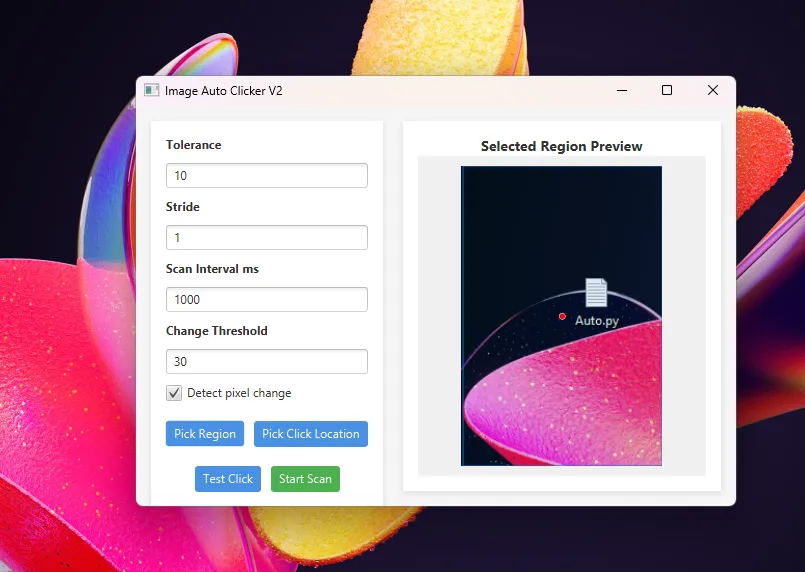
Built with Java 21, JavaFX, and Maven, it uses java.awt.Robot to watch a chosen screen area and trigger a click when pixels match a reference or change past a set threshold.
Key upgrades:
Region picker overlay with live preview and click indicator
Adjustable tolerance, stride, and interval controls
Dual detection modes (reference match or change %)
Smooth, threaded scanning loop with safe start/stop
It runs on a lightweight MVC setup, stays responsive, and uses less CPU than V1.
Version 2: A Smarter Scanner
Built with Java 21, JavaFX, and Maven, it uses java.awt.Robot to watch a chosen screen area and trigger a click when pixels match a reference or change past a set threshold.
Key upgrades:
Region picker overlay with live preview and click indicator
Adjustable tolerance, stride, and interval controls
Dual detection modes (reference match or change %)
Smooth, threaded scanning loop with safe start/stop
It runs on a lightweight MVC setup, stays responsive, and uses less CPU than V1.
Lessons
Always start with the messy version; it teaches you what not to do.
Optimising early is a trap. Fix only what slows you down.
Visual feedback helps debugging more than logs ever will.
Next, I’ll write about how I packaged it into a Windows .exe, polished the UI, and made it ready for everyday use.
From Laggy to Smart: My Java App Learns to Click
Auto accept game for League of Legends built in Java
Insights
One night after a long day of sitting and working, I logged on to League to relax (trust me, it is not relaxing). I hit the Find Match button, then ran to the bathroom. If you’ve ever played League of Legends, you know it picks the worst time to show the “Match Accepted” screen. You have about 15 seconds before it auto-declines the game for you.
I missed that window. Got banned.
So I thought, I can automate this.
The Plan
I wanted to build a lightweight Java app that could:
Watch a fixed region of the screen
Detect when the Accept button appears
Click it automatically
I set three rules for myself:
Keep CPU use very low
No false positives
For tools, I chose:
Java 17, with JavaFX for the interface
java.awt.Robot for screen capture and mouse clicks
ScheduledExecutorService for the scanning loop
How It Works
Capture a small region using Robot.createScreenCapture(rect)
Convert it to grayscale and downscale for speed
Compare it to the last captured frame
If the pixel difference passes a set tolerance, trigger a click
Pseudocode looked something like this:
init UI, load settings
rect = selected region
robot = new Robot()
prev = null
stableHits = 0
every scanInterval ms:
img = robot.createScreenCapture(rect)
diff = meanAbsDiff(prev, img)
prev = img
if diff > tolerance:
stableHits++
else:
stableHits = 0
if stableHits >= debounceCount:
click(rect.center())
stableHits = 0
sleep(cooldown)
This small loop made all the difference. Instead of scanning the whole screen, it focused only on where the Accept button appears, saving a ton of resources.
Building Version 1
Version 1 was pure experimentation. I used raw Swing components, scanned the entire screen, and pushed my CPU to almost 100%. The app clicked when it shouldn’t have, lagged when it should’ve been idle, and stayed open even when I quit the game.
Still, it proved the idea worked.
One night after a long day of sitting and working, I logged on to League to relax (trust me, it is not relaxing). I hit the Find Match button, then ran to the bathroom. If you’ve ever played League of Legends, you know it picks the worst time to show the “Match Accepted” screen. You have about 15 seconds before it auto-declines the game for you.
I missed that window. Got banned.
So I thought, I can automate this.
The Plan
I wanted to build a lightweight Java app that could:
Watch a fixed region of the screen
Detect when the Accept button appears
Click it automatically
I set three rules for myself:
Keep CPU use very low
No false positives
For tools, I chose:
Java 17, with JavaFX for the interface
java.awt.Robot for screen capture and mouse clicks
ScheduledExecutorService for the scanning loop
How It Works
Capture a small region using Robot.createScreenCapture(rect)
Convert it to grayscale and downscale for speed
Compare it to the last captured frame
If the pixel difference passes a set tolerance, trigger a click
Pseudocode looked something like this:
init UI, load settings
rect = selected region
robot = new Robot()
prev = null
stableHits = 0
every scanInterval ms:
img = robot.createScreenCapture(rect)
diff = meanAbsDiff(prev, img)
prev = img
if diff > tolerance:
stableHits++
else:
stableHits = 0
if stableHits >= debounceCount:
click(rect.center())
stableHits = 0
sleep(cooldown)
This small loop made all the difference. Instead of scanning the whole screen, it focused only on where the Accept button appears, saving a ton of resources.
Building Version 1
Version 1 was pure experimentation. I used raw Swing components, scanned the entire screen, and pushed my CPU to almost 100%. The app clicked when it shouldn’t have, lagged when it should’ve been idle, and stayed open even when I quit the game.
Still, it proved the idea worked.
Version 2: A Smarter Scanner
Built with Java 21, JavaFX, and Maven, it uses java.awt.Robot to watch a chosen screen area and trigger a click when pixels match a reference or change past a set threshold.
Key upgrades:
Region picker overlay with live preview and click indicator
Adjustable tolerance, stride, and interval controls
Dual detection modes (reference match or change %)
Smooth, threaded scanning loop with safe start/stop
It runs on a lightweight MVC setup, stays responsive, and uses less CPU than V1.
Version 2: A Smarter Scanner
Built with Java 21, JavaFX, and Maven, it uses java.awt.Robot to watch a chosen screen area and trigger a click when pixels match a reference or change past a set threshold.
Key upgrades:
Region picker overlay with live preview and click indicator
Adjustable tolerance, stride, and interval controls
Dual detection modes (reference match or change %)
Smooth, threaded scanning loop with safe start/stop
It runs on a lightweight MVC setup, stays responsive, and uses less CPU than V1.
Lessons
Always start with the messy version; it teaches you what not to do.
Optimising early is a trap. Fix only what slows you down.
Visual feedback helps debugging more than logs ever will.
Next, I’ll write about how I packaged it into a Windows .exe, polished the UI, and made it ready for everyday use.
From Laggy to Smart: My Java App Learns to Click
Auto accept game for League of Legends built in Java
Insights
One night after a long day of sitting and working, I logged on to League to relax (trust me, it is not relaxing). I hit the Find Match button, then ran to the bathroom. If you’ve ever played League of Legends, you know it picks the worst time to show the “Match Accepted” screen. You have about 15 seconds before it auto-declines the game for you.
I missed that window. Got banned.
So I thought, I can automate this.
The Plan
I wanted to build a lightweight Java app that could:
Watch a fixed region of the screen
Detect when the Accept button appears
Click it automatically
I set three rules for myself:
Keep CPU use very low
No false positives
For tools, I chose:
Java 17, with JavaFX for the interface
java.awt.Robot for screen capture and mouse clicks
ScheduledExecutorService for the scanning loop
How It Works
Capture a small region using Robot.createScreenCapture(rect)
Convert it to grayscale and downscale for speed
Compare it to the last captured frame
If the pixel difference passes a set tolerance, trigger a click
Pseudocode looked something like this:
init UI, load settings
rect = selected region
robot = new Robot()
prev = null
stableHits = 0
every scanInterval ms:
img = robot.createScreenCapture(rect)
diff = meanAbsDiff(prev, img)
prev = img
if diff > tolerance:
stableHits++
else:
stableHits = 0
if stableHits >= debounceCount:
click(rect.center())
stableHits = 0
sleep(cooldown)
This small loop made all the difference. Instead of scanning the whole screen, it focused only on where the Accept button appears, saving a ton of resources.
Building Version 1
Version 1 was pure experimentation. I used raw Swing components, scanned the entire screen, and pushed my CPU to almost 100%. The app clicked when it shouldn’t have, lagged when it should’ve been idle, and stayed open even when I quit the game.
Still, it proved the idea worked.
One night after a long day of sitting and working, I logged on to League to relax (trust me, it is not relaxing). I hit the Find Match button, then ran to the bathroom. If you’ve ever played League of Legends, you know it picks the worst time to show the “Match Accepted” screen. You have about 15 seconds before it auto-declines the game for you.
I missed that window. Got banned.
So I thought, I can automate this.
The Plan
I wanted to build a lightweight Java app that could:
Watch a fixed region of the screen
Detect when the Accept button appears
Click it automatically
I set three rules for myself:
Keep CPU use very low
No false positives
For tools, I chose:
Java 17, with JavaFX for the interface
java.awt.Robot for screen capture and mouse clicks
ScheduledExecutorService for the scanning loop
How It Works
Capture a small region using Robot.createScreenCapture(rect)
Convert it to grayscale and downscale for speed
Compare it to the last captured frame
If the pixel difference passes a set tolerance, trigger a click
Pseudocode looked something like this:
init UI, load settings
rect = selected region
robot = new Robot()
prev = null
stableHits = 0
every scanInterval ms:
img = robot.createScreenCapture(rect)
diff = meanAbsDiff(prev, img)
prev = img
if diff > tolerance:
stableHits++
else:
stableHits = 0
if stableHits >= debounceCount:
click(rect.center())
stableHits = 0
sleep(cooldown)
This small loop made all the difference. Instead of scanning the whole screen, it focused only on where the Accept button appears, saving a ton of resources.
Building Version 1
Version 1 was pure experimentation. I used raw Swing components, scanned the entire screen, and pushed my CPU to almost 100%. The app clicked when it shouldn’t have, lagged when it should’ve been idle, and stayed open even when I quit the game.
Still, it proved the idea worked.
Version 2: A Smarter Scanner
Built with Java 21, JavaFX, and Maven, it uses java.awt.Robot to watch a chosen screen area and trigger a click when pixels match a reference or change past a set threshold.
Key upgrades:
Region picker overlay with live preview and click indicator
Adjustable tolerance, stride, and interval controls
Dual detection modes (reference match or change %)
Smooth, threaded scanning loop with safe start/stop
It runs on a lightweight MVC setup, stays responsive, and uses less CPU than V1.
Version 2: A Smarter Scanner
Built with Java 21, JavaFX, and Maven, it uses java.awt.Robot to watch a chosen screen area and trigger a click when pixels match a reference or change past a set threshold.
Key upgrades:
Region picker overlay with live preview and click indicator
Adjustable tolerance, stride, and interval controls
Dual detection modes (reference match or change %)
Smooth, threaded scanning loop with safe start/stop
It runs on a lightweight MVC setup, stays responsive, and uses less CPU than V1.
Lessons
Always start with the messy version; it teaches you what not to do.
Optimising early is a trap. Fix only what slows you down.
Visual feedback helps debugging more than logs ever will.
Next, I’ll write about how I packaged it into a Windows .exe, polished the UI, and made it ready for everyday use.